Auto Packager
Work Planner Auto Packaging provides the capability for automated bundling of capital works outputs generated by Predictor, grouping treatments based on location relationships and organizational policies, reducing the manual effort required for capital works planning.
In order to use the Auto Packaging functionality, first create a Project in Work Planner. Next, open the Builder tab and click the ‘Auto-Packager’ button.
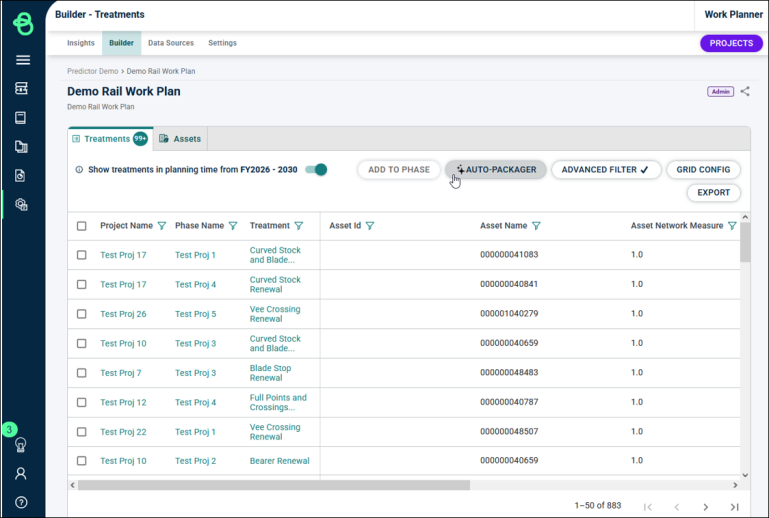
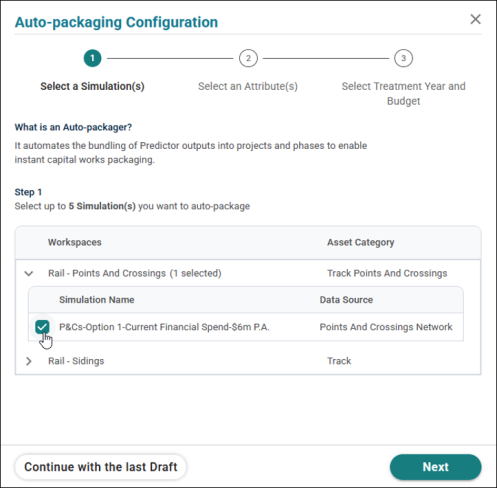
In the Auto-packaging Configuration pop-up, first select the simulations containing the Assets and Treatments to be packaged. Up to 5 different Simulations can be included.
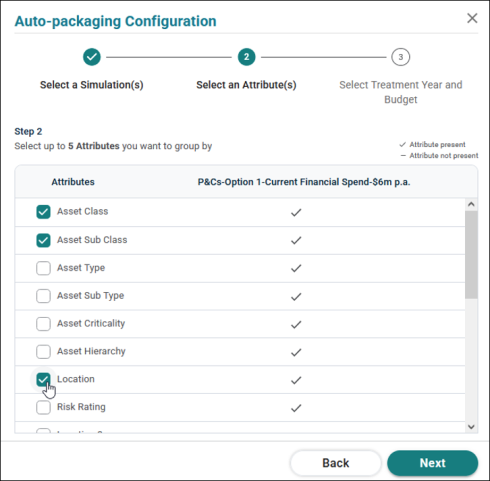
Next, after selecting the simulations, define the Treatment grouping attributes. This determines which Asset Attributes will be considered by the Auto-packager as it groups Treatments together. The available options are based on the mappings from the imported Data in the model.
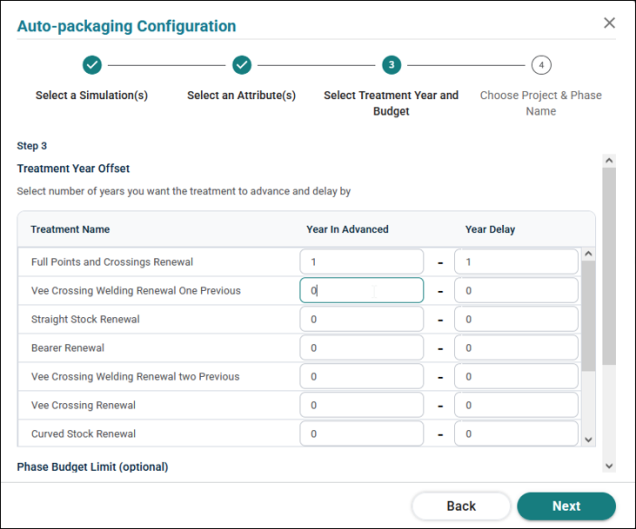
Then, specify how many years to allow for Treatments to be delayed or advanced. This defines the flexibility that the Auto Packager has to move Treatments forward or backward when grouping. Additionally, phase budget minimums and maximums can be specified, to further fine-tune the flexibility Auto Packager has when grouping Treatments. If no phase budget is specified, the Fiscal Year Budget from the Simulation settings will be used.
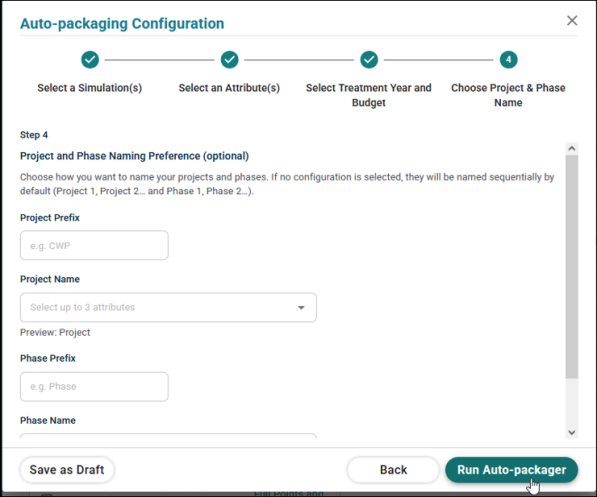
Finally, optional Project and Phase naming preferences can be configured, or the defaults left as in. Once the preferences are finalized, Auto-packager can be run, which will group and bundle Treatments.
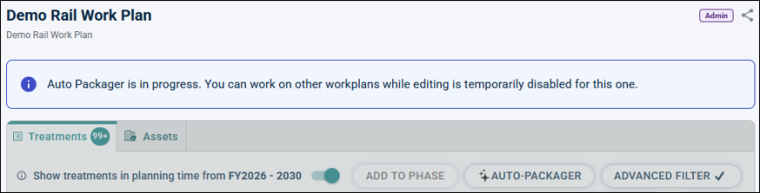
Auto-packager will proceed to group the Treatments into Projects and Phases as defined in the configuration. While it is in progress, editing of the Work Plan will be temporarily disabled.
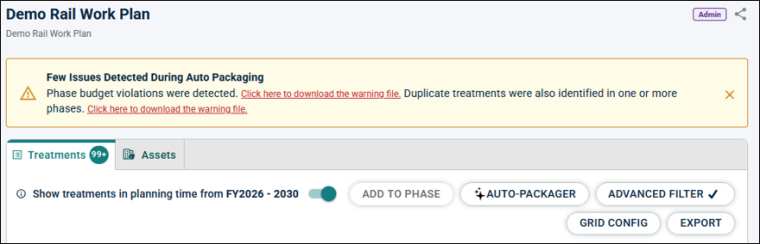
NOTE After Auto-packaging is completed, Predictor will provide a downloadable warning file if it detects any issues such as exceeded bud gets or duplicate treatments.
c